
What you need first
- FaithCode website / server already installed and working (see cPanel or Local)
- Mobile API available in your package (included, or installed via
/addonsif sold separately — works on local and cPanel) - A Windows or Mac computer if you build the app yourself (or an APK you already have)
- A real Android phone or tablet (or iPhone/iPad if you build for iOS)
- For local testing: phone/tablet and computer on the same Wi‑Fi network
/api.
Important: use a real phone or tablet
API Configuration in this buyer guide is written for physical devices only.
| Use this | Do not use this for API setup |
|---|---|
| Your cellphone or tablet with the FaithCode POS app installed | Android emulator / simulator on the computer |
| Same Wi‑Fi as the computer when testing locally | Phone browser (Chrome/Safari) to “test” the API URL |
| USB cable to install the app, then Wi‑Fi for daily use | 127.0.0.1 or localhost as the API address on a real phone |
Why? A real phone cannot see your computer as “localhost.” It needs your computer’s Wi‑Fi address
(for example 192.168.0.196). Emulators use special addresses that confuse non-technical setup —
so we keep buyer steps simple: phone or tablet + same Wi‑Fi.
1) Install Flutter (one-time on your computer)
Skip this section if you already have an APK file to install on the phone.
-
Download Flutter
Open the Flutter install guide and install the SDK for Windows or macOS.
-
Add Flutter to PATH
Follow the installer so the
fluttercommand works in a new terminal window. -
Check your setup
flutter doctorInstall any missing Android Studio / SDK items it suggests. Accept Android licenses if asked:
flutter doctor --android-licenses
2) Install packages for mobile_app
Open a terminal in the FaithCode Flutter folder (the folder that contains pubspec.yaml):
cd path\to\mobile_app
flutter pub get
Wait until it finishes with no errors. This downloads the app’s Dart packages.
pubspec.yaml and run flutter pub get there.
3) Put the app on your phone or tablet
-
Start your FaithCode server first
Local testing: on the computer, in
laravel_app, run:php artisan serve --host=0.0.0.0 --port=8000The
0.0.0.0part lets your phone reach the computer over Wi‑Fi.Live website: your domain must already be online with HTTPS (no need for
artisan serve). -
Connect a real phone or tablet by USB
Turn on USB debugging (Android) or trust the computer (iOS). Plug the device into the PC.
flutter devices
flutter run
Choose your physical device from the list — not an emulator entry.
-
Or install an APK (Android)
Build an APK (next section), copy it to the phone, and open the file to install. Then continue with API Configuration on the device.
4) Build an APK to install on Android phones / tablets
cd path\to\mobile_app
flutter pub get
flutter build apk
When finished, the file is usually here:
mobile_app\build\app\outputs\flutter-apk\app-release.apkCopy that APK to your Android phone or tablet and open it to install (allow “Install unknown apps” if the phone asks).
For Google Play later (advanced):
flutter build appbundle5) API Configuration — on the phone or tablet
Do this inside the FaithCode POS app on your cellphone or tablet. You are telling the app where your FaithCode server lives.
Open the screen
-
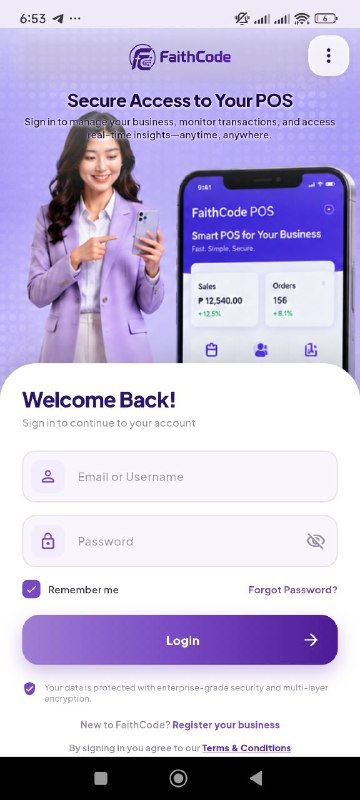
Open FaithCode POS on the device
You should see the login screen.
-
Open the menu
Tap the three dots ⋮ (usually top-right) → tap API Configuration.
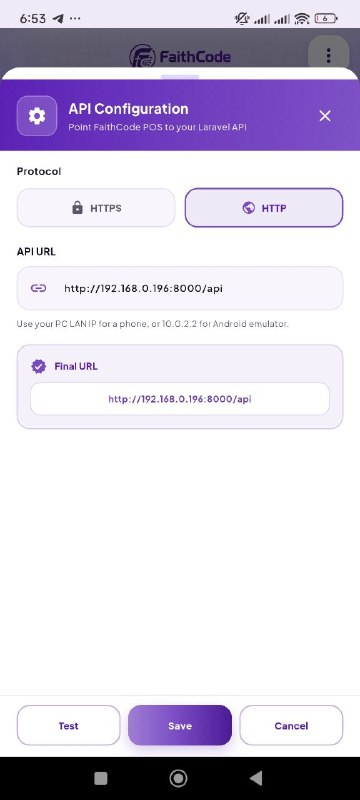
Fill in the fields
-
Choose Protocol
HTTP when your server runs on your computer at home/office (local test).
HTTPS when you use a real website domain (cPanel / live hosting).
-
Enter the API URL
The address must end with
/api. Look at the “Final URL” preview on the screen — it should look like one of the examples below. -
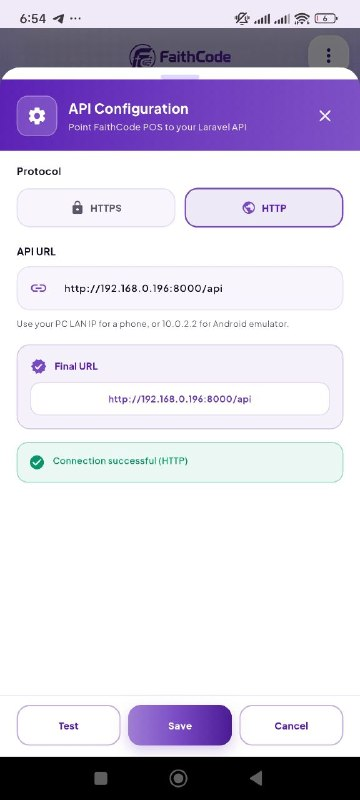
Tap Test
Wait for a green message: Connection successful. If it fails, fix the URL or Wi‑Fi first — do not Save yet.
-
Tap Save
Go back to login and sign in with your business portal user (same email/password as the website).
Local setup — phone/tablet and computer on the same Wi‑Fi
Step A — Find your computer’s Wi‑Fi address (Windows)
-
Open Command Prompt or PowerShell
ipconfig -
Find IPv4 Address under your Wi‑Fi adapter
Example:
192.168.0.196. Write it down. This is your computer’s address on the Wi‑Fi — not127.0.0.1.
On Mac: System Settings → Network → Wi‑Fi → Details, or run ifconfig and look for inet on en0.
Step B — Start Laravel so the phone can reach it
cd path\to\laravel_app
php artisan serve --host=0.0.0.0 --port=8000
Leave this window open while you test on the phone.
Step C — Type this in the app (on the phone/tablet)
| Setting | What to enter |
|---|---|
| Protocol | HTTP |
| API URL | http://YOUR_COMPUTER_IP:8000/api |
| Example | http://192.168.0.196:8000/api |
Replace 192.168.0.196 with your IPv4 from Step A.
Keep :8000/api when using php artisan serve on port 8000.
http://127.0.0.1:8000/api on the phone.
That means “this phone itself,” not your computer — Test will fail. Always use the computer’s Wi‑Fi IP.
Live / cPanel — use your website address (no port)
:8000.
| Setting | Example |
|---|---|
| Protocol | HTTPS |
| Your domain | https://your-domain.com/api |
- Website already installed with the Setup Wizard
- You can open the website in a normal browser and log in
- SSL is active (padlock in the browser) — AutoSSL / Let’s Encrypt on cPanel is fine
- Mobile / API add-on enabled if it was sold separately
- On the phone: Test → green success → Save → Login
Same rule: configure this inside the app on the phone or tablet, not by opening the API URL in the phone browser as a substitute for the app.
Sign in on the phone or tablet
Use the same business portal users as the website (owner / staff / cashier) — not the Super Admin console account. Default seed accounts from Setup:
| Role | Username | Password | |
|---|---|---|---|
| Owner | business_owner |
business@faithcode.tech |
BusinessTech |
| Staff | business_staff |
businessStaff@faithcode.tech |
BusinessStaff |
| Cashier | business_cashier |
businessCashier@faithcode.tech |
businessCashier |
Full list (including Super Admin): Buyer demo accounts.
Troubleshooting (phone / tablet)
| Problem | What to try |
|---|---|
| Test fails on the phone (local) | Confirm same Wi‑Fi; use computer LAN IP (not 127.0.0.1); serve with --host=0.0.0.0; allow Windows Firewall for port 8000 on private networks |
| URL looks right but Test still fails | Phone must use Wi‑Fi (not mobile data) for local testing; turn VPN off; confirm Laravel terminal is still running |
Forgot /api |
Final URL must end with /api |
| Live HTTPS fails | Open the website in a browser first; fix SSL; use https://your-domain.com/api with no port |
| Login works on website, not in the app | Wrong API URL, or Mobile API / add-on not installed on the server |
flutter pub get errors |
Run flutter doctor; check internet; confirm you are in the folder with pubspec.yaml |
← Web install chooser · cPanel · Local · Home